Enable Schoolyear integration for a proctored exam
Jump to section
Configure Schoolyear integration settings
Tips and tricks for running a Schoolyear exam
If your organization uses Schoolyear's safe exam workspace, it can now be integrated with Möbius so that the Schoolyear lockdown browser and remote proctoring features can be used in a Möbius proctored exam.
Schoolyear integration includes proctored exam settings to allow access only to specified sites or apps, which are applied assignment wide and accessed through the Assignment Editor in Möbius (check out Define assignment properties).
Schoolyear integration includes student activity and invigilation on the Schoolyear dashboard, which are applied to individual students and accessed through Proctor Tools in Möbius (check out Use Proctor Tools).
IMPORTANT: The proctored exam settings can be defined without a Schoolyear login, but access to the invigilation and student activity requires you to login to your Schoolyear account. Your Schoolyear access should be addressed by your organization's Schoolyear administrator.
Assignment and proctor settings related to Schoolyear won't be visible in Möbius unless the integration between Schoolyear and Möbius has been configured and enabled on the administrator side.
Configure Schoolyear integration settings
Your organization's Möbius administrator requires the Base API URL and API Secret from your organization's Schoolyear service, in order to configure the integration between Möbius and Schoolyear.
This information can be entered in the Möbius System Settings page. Your organization's Möbius administrator should contact DigitalEd Support for help with changing these system-wide settings.
Tips and tricks for running a Schoolyear exam
Schoolyear and Möbius have different system requirements and listed compatible browsers. Only Chrome and Firefox (on Mac or Windows) are officially supported by both Schoolyear and Möbius. Mobile devices aren't supported.
For an exam using the Schoolyear lockdown browser, students should ensure their browser and operating system are up to date, and their computer time is accurate.
Students using a Mac computer should also ensure no popups are expected.
For students using Chrome, if the Schoolyear download page isn't working, try clearing cache and cookies. Then when revisiting the download page, allow local network access in the browser by clicking the View site information icon on the left side of the address bar, and choosing Site settings.
Once a student is authorized through Möbius (i.e. on the Proctor Authorization Request page), the student is redirected to Schoolyear first. This occurs before the student starts the exam, so they can log out and resume in Möbius as they need without requiring re-authorization on the Möbius side. This is helpful if they are having a problem with Schoolyear that requires troubleshooting.
Enable Schoolyear browser for a proctored exam
Once an administrator has enabled Schoolyear and completed the integration with Möbius, you'll be able to enable the Schoolyear lockdown browser and apply Schoolyear settings to any proctored exam in Möbius.
IMPORTANT: You must apply a Start Date and an End Date, and then save the assignment, before you can enable Schoolyear for that assignment.
The Schoolyear settings for the exam are accessible to any instructor in the Möbius class, or any other class role with the permission to edit assignments.
To enable Schoolyear for an existing assignment:
Open your assignment for editing (check out Edit an assignment).
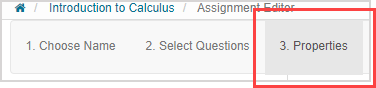
Click the 3. Properties tab in the Assignment Editor.
Under the Scheduling & Visibility section, ensure that both the Start Date and End Date are set (check out Define assignment properties).
Under the Type of Assignment section, ensure that the radio button is set to Proctored Exam (check out Define assignment properties).
Enable Require Schoolyear Browser in the Proctored Exam settings, and save the assignment.
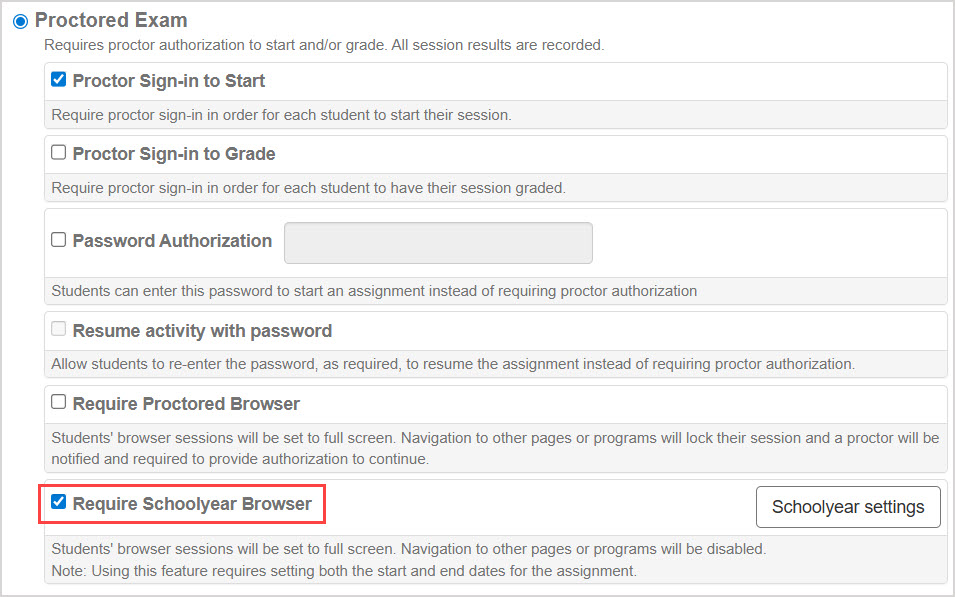
NOTE: A Schoolyear exam that has been imported, inherited from a parent class, or cloned into the current class, doesn't retain any of its Schoolyear settings. The Require Schoolyear Browser setting needs to be enabled again, and new Schoolyear settings need to be applied for the imported, inherited, or cloned exam.
Click the Schoolyear settings button next to Require Schoolyear Browser.
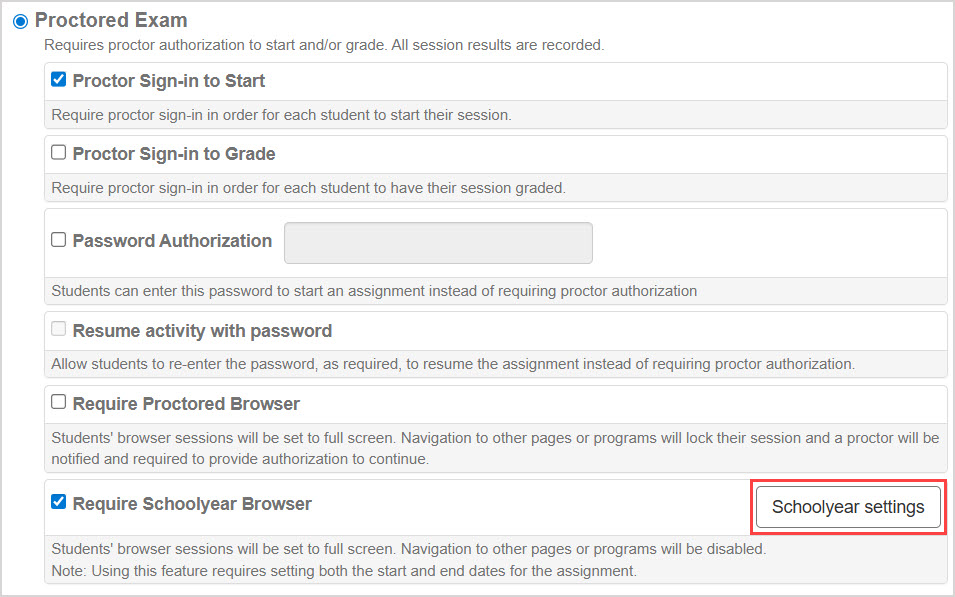
NOTE: This button is disabled until both the Start Date and End Date have been set, the Require Schoolyear Browser setting has been enabled, and the assignment has been saved successfully.
Change the Schoolyear settings as required.
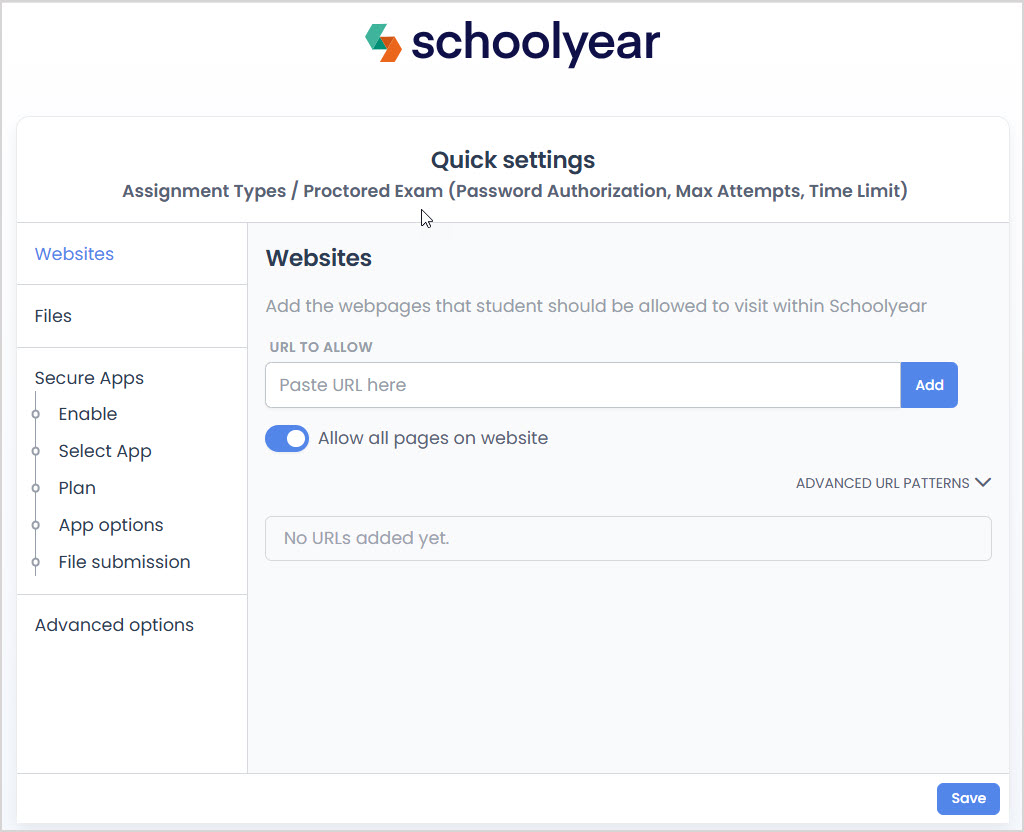
TIP: Schoolyear can restrict student access during the exam to only certain websites. To allow access to a separate Möbius activity, such as referencing a lesson for an open-book exam, you'll need to add the activity to the list of allowed websites in Schoolyear.
Open the activity from the Class Homepage to get the activity URL (e.g. https://springfield.mobius.cloud/30/4/assignments/9/0) and provide that as a link to the students in your exam.
Then in the Schoolyear settings for the exam, paste that into the URL To Allow field under Websites and click Add. Also, click Advanced URL Patterns, and add the following pattern:
Protocol: HTTPS
Hostname: the domain of the activity URL (e.g. springfield.mobius.cloud)
Path: the path of the activity URL, but without the first number and with the last zero replaced by an asterisk (e.g. /4/assignments/9/*).
Click Save in Schoolyear, and wait for confirmation that the exam was updated successfully.
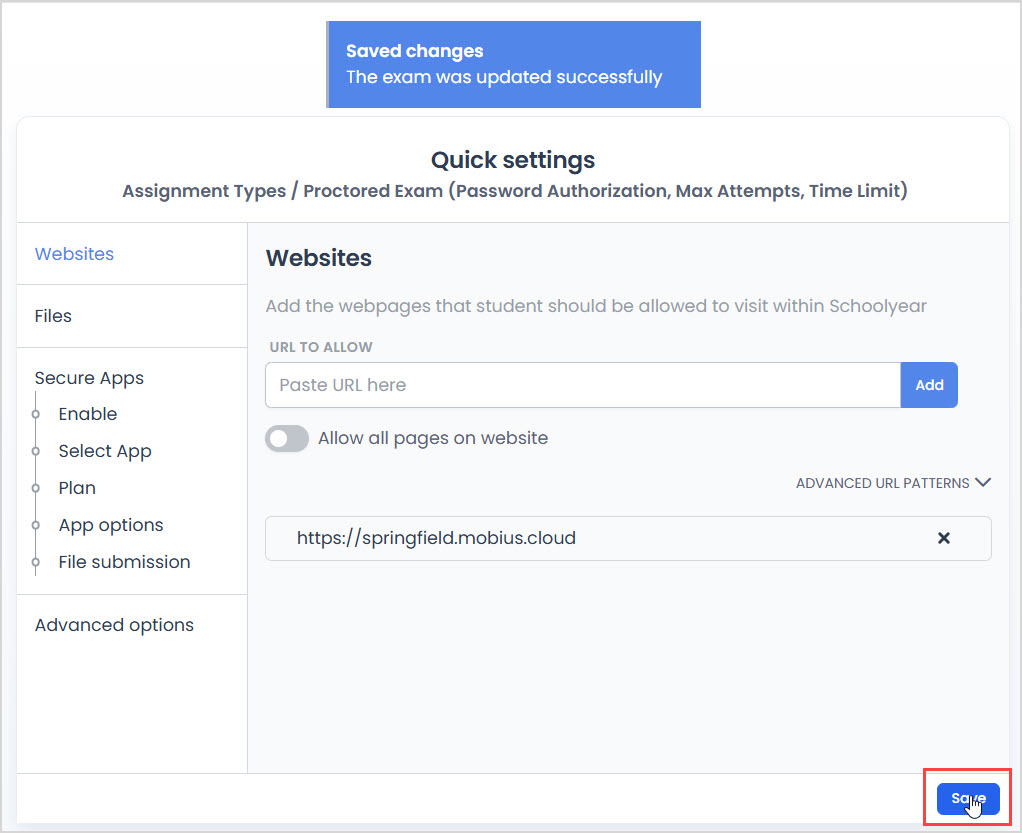
Return to the Möbius tab and click Save in the assignment settings.

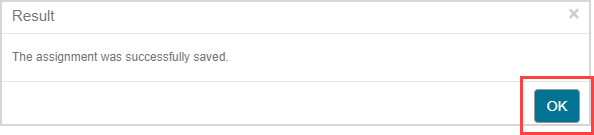
A success message appears after saving your changes. Click OK to continue.
Access the Schoolyear activity dashboard
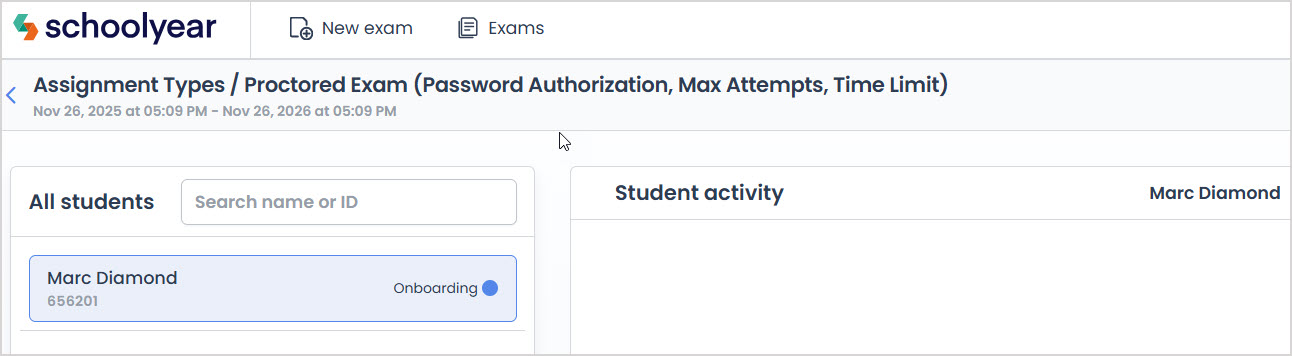
Accessing the Schoolyear dashboard for a proctored exam will allow you to review student activity, edit the Schoolyear settings for the exam, and use other Schoolyear features.
IMPORTANT: The Schoolyear exam dashboard for a Möbius proctored exam must be accessed through Proctor Tools in the Möbius class containing the exam; you'll also require a Schoolyear login.
To access the Schoolyear exam dashboard for an existing assignment:
Click Proctor Tools on the Class Homepage in the class containing the proctored exam (check out Access Proctor Tools).
Perform an advanced search, selecting your proctored exam from the Assignment Filter drop-down list (check out Advanced Search in Proctor Tools).
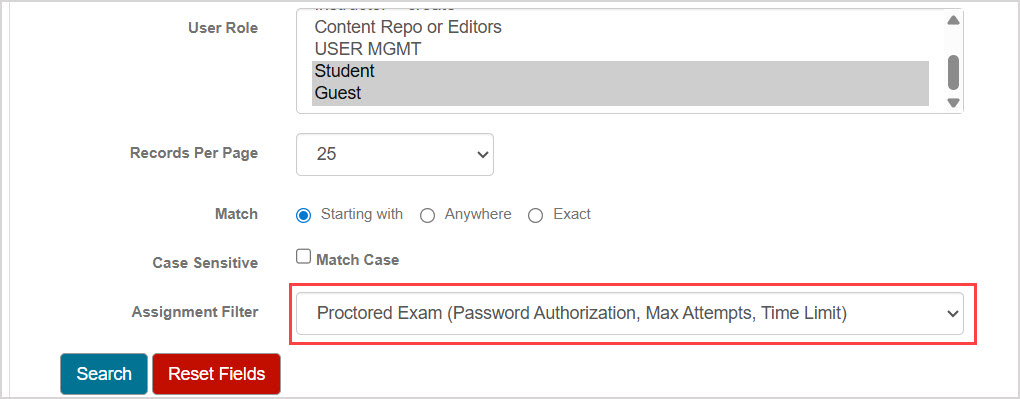
Ensure your proctored exam is selected in the Authorize Which Assignment section.
Click the Schoolyear dashboard button.

NOTE: The Schoolyear dashboard button only appears for exams that have already had Schoolyear settings applied through the Assignment Editor.
Log in to your Schoolyear account.
Review student activity in the Schoolyear dashboard as required.