Manually grade an organic chemistry question
If an organic chemistry question isn't set to be automatically graded by Möbius, you'll need to manually enter a grade for the student's response.
A Gradebook search is first performed to identify student responses that require manual grading (check out Search for class grades).
TIP: Organic chemistry questions may be set up either for automated grading, or to require manual grading. Check out Grading details for organic chemistry questions.
TIP: Check out Perform manual grading to understand the overall workflow for manually grading an activity.
Manually grade a student's organic chemistry question response
To manually grade a student's response to an organic chemistry question:
TIP: Alternatively, you can use the Activity Grading View to manually grade a student's response to an organic chemistry question. Check out Access the Activity Grading View.
Navigate to the Question pane that contains the student's response to the question.
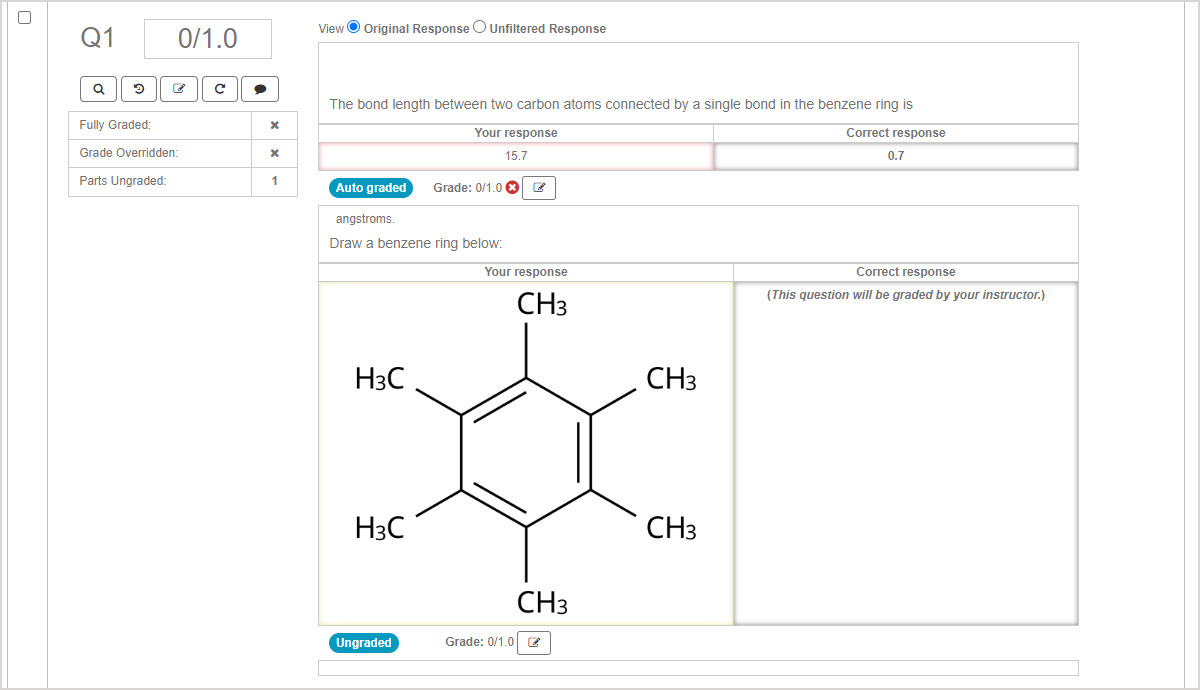
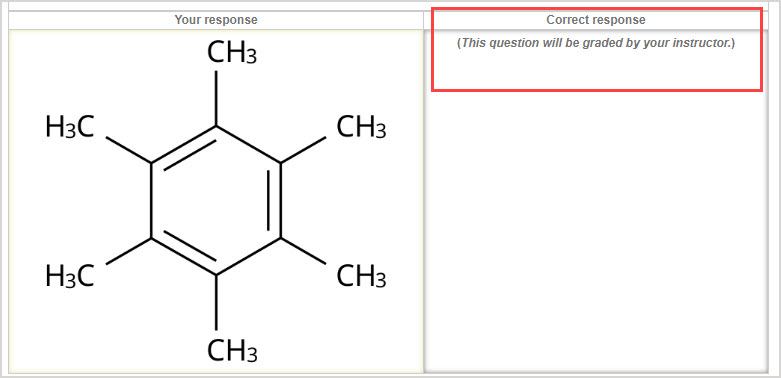
NOTE: Organic chemistry questions won't display a correct response.
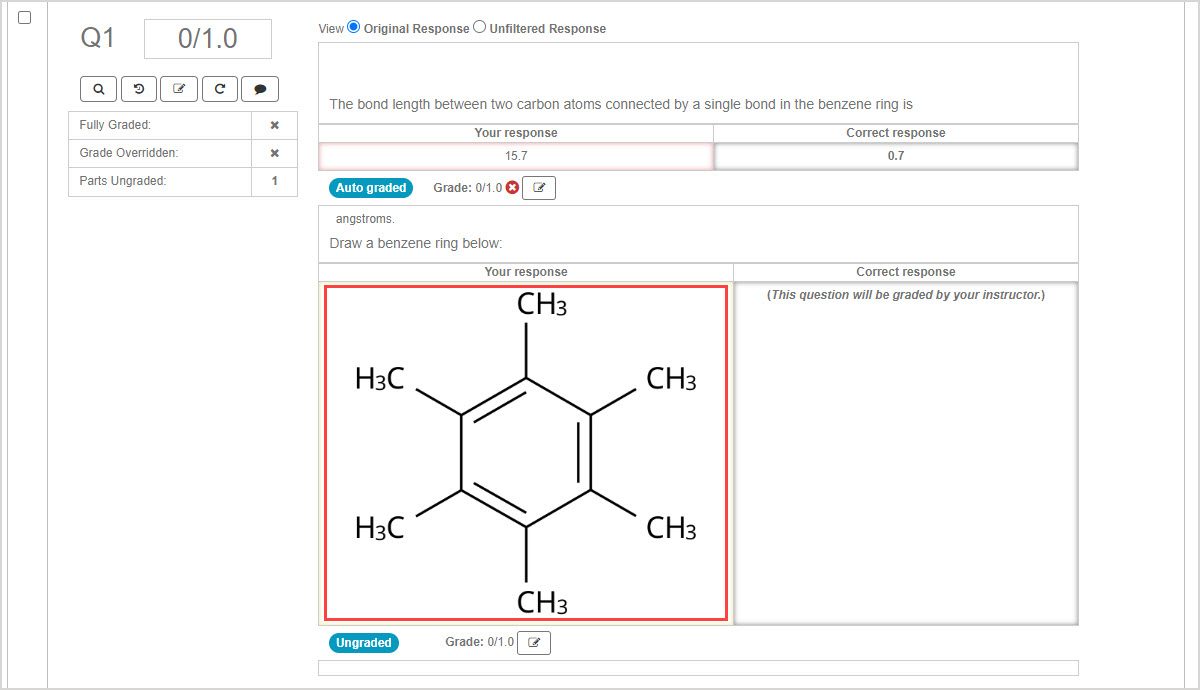
Preview the static rendering of the students drawing under Your response.
Click the edit part grade icon
 to award the student a grade for their drawing.

Click the save icon
 to save the student's awarded grade.

TIP: Check out Perform a grading task from a Question pane to learn more about editing part and overall grades.