Clone my LMS course
Möbius has made course organization even easier with improved course cloning capabilities between Möbius and your Learning Management System (LMS) (Example — Blackboard®, Brightspace®, Canvas™, Moodle™, etc.).
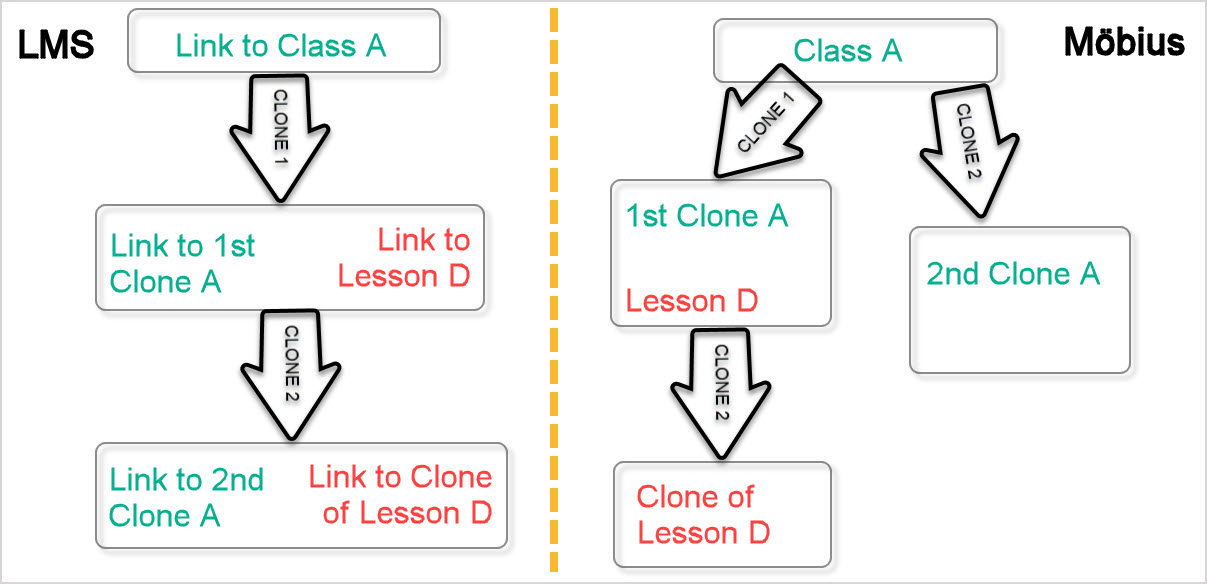
When a course is cloned in your LMS, and it contains LTI links to a Möbius class, then Möbius can automatically create a new child class (for the newly-cloned course) when the students follow the cloned link.
If your organization already uses LTI, please contact DigitalEd's Support Team if you'd like to take advantage of this feature.
If your organization doesn't yet use LTI, this feature will automatically be available to you when you're ready to connect an LMS course to a Möbius class.
You can create deep and manual LTI links when connecting your LMS course to Möbius classes, but deep links are recommended.
Deep links
Deep linking automatically configures the LTI link with custom parameters, which are retained when the link is copied or cloned.
Deep linking is recommended if you're planning to clone your LMS course and take advantage of this course cloning feature.
Suppose you have a deep link in your LMS course to a Möbius class, then later clone that LMS course:
- With the course cloning feature enabled, when the cloned link is first clicked, Möbius ensures that the grades are separated from the original Möbius class by creating a child class.
NOTE: If new links are added to a cloned course and later the cloned course is itself cloned, the two sets of links (new vs cloned) in the resulting clone of the cloned course would spawn two different child classes in Möbius under different parent classes. This feature may not produce the desired result if you make clones of cloned courses—please contact DigitalEd's Support Team for help with investigating alternatives or disabling this feature.
TIP: Check out the deep linking information page by 1EdTech (formerly IMS Global).
NOTE: If you choose not to enable deep linking in your LMS, you can still support course cloning. However, you'll have to manually copy and paste the contents of the Custom Parameters field in Möbius into the Custom Parameters of the LTI link, in order for that LTI link to work after cloning the LMS course.

IMPORTANT: Your LMS must provide the context id in its requests. If your organization is using Brightspace, there's an explicit setting to specify whether this context id is provided in the LMS request or not.
Assign an instructor to a child class
When a cloned link in the LMS course is first clicked, a child class in Möbius is automatically created and the user is navigated to that child class.
The primary instructor of the Möbius child class is determined by the first user who clicked the cloned LMS link:
- If that user is an instructor, they're assigned as the primary instructor of the child class
- If that user is a student, the instructor of the parent class in Möbius is assigned as the primary instructor of the child class
IMPORTANT: If you want to be the user assigned as the primary instructor of the Möbius child class, be sure to click the cloned LMS link as soon as you create it.
TIP: Check out Change the primary instructor to reassign the primary instructor of the child class at any time.