Get my license using Möbius
Jump to section
Use a redemption code to get my license
Check the expiry of my license
General license information
If student-pay licenses are required for your school or textbook, you'll be able to use the steps in this help topic to:
- Get a temporary license — Pay for your full license at a later time while you use your temporary license
- Pay now for my license — Use a credit or debit card, or an existing PayPal account, to complete your secure online payment and obtain your full license
- Use a redemption code for my license — Redeem your 16-character alphanumeric redemption code to obtain your full license (Example — QZ79-12UF-R38J-W63P)
When you access your class inside of the Möbius platform and you don't already have a license, you'll be prompted automatically to complete one of these steps.
The availability of each option depends on the requirements for your school or textbook (Example — you might only see the Pay now option).
NOTE: When paying for your license, you'll use the PayPal system to pay online securely, with the available payment methods being either an existing PayPal account or a debit or credit card without an existing PayPal account.
TIP: If you're returning to this page to see how to complete your payment to turn your temporary license into a full Möbius license, check out the Complete payment for my temporary license section of this help topic.
Access Möbius licensing
Your instructor will provide you with either a Class Link URL (Example — https://springfieldu.mobius.cloud/class/UUYYT) or a Möbius link within your Learning Management System (LMS) (Example — Blackboard®, Brightspace®, Canvas™, Moodle™, etc.) to enroll and access your Möbius class or content.
Once you've used the provided Class Link or LMS link, you'll land on the User License Required page that prompts you to obtain a Möbius license.
NOTE: You might need to create a Möbius account before you can log in. Check out Create an account. However, users accessing Möbius through a Learning Management System (LMS) won't ever need to create a Möbius account.
To initiate your licensing purchase:
After logging into Möbius and selecting a class or content that requires a Möbius license, you'll land on a notification page where you can then make a selection to get a temporary license, pay now, or use a code:
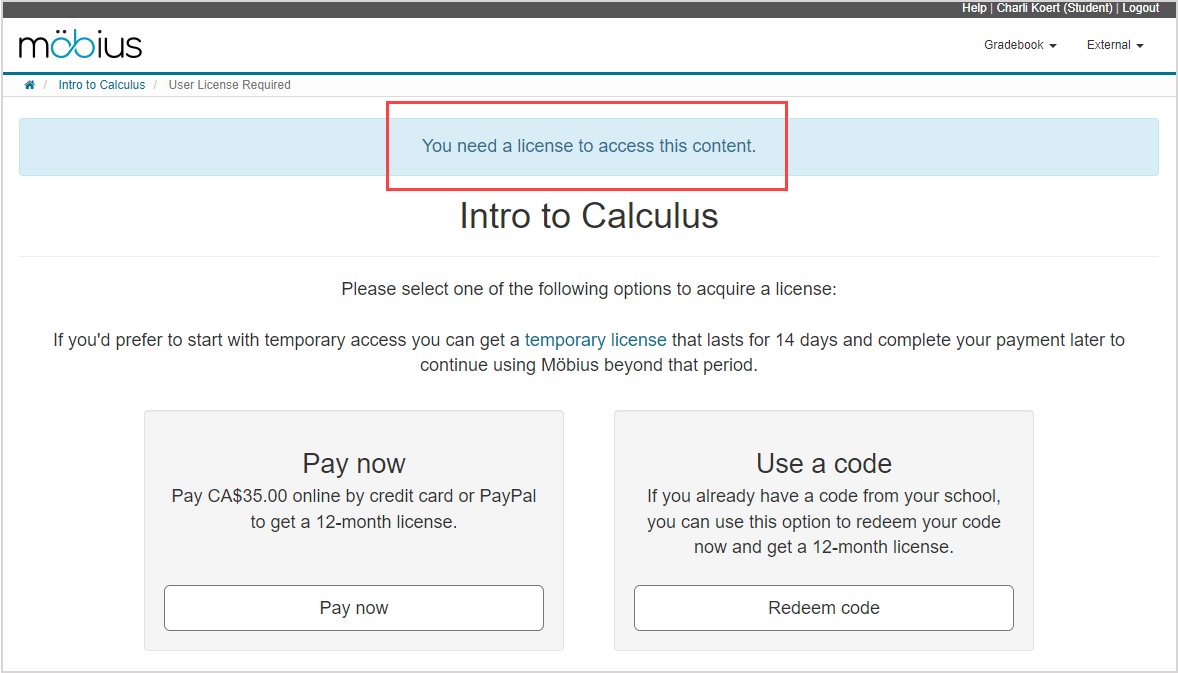
NOTE: Depending on your organization, you might not have all three license purchasing options available (Example — you might only see the Pay now option).
- Click temporary license to receive temporary access to Möbius
- Then check out the Get a temporary license section of this help topic
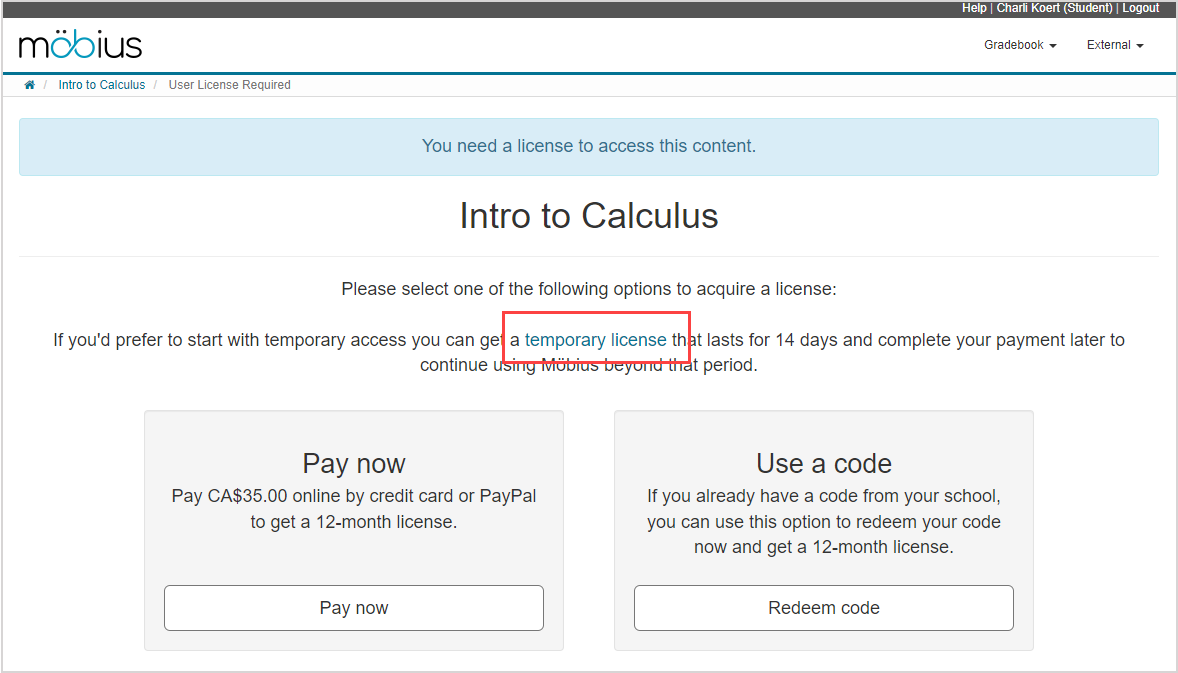
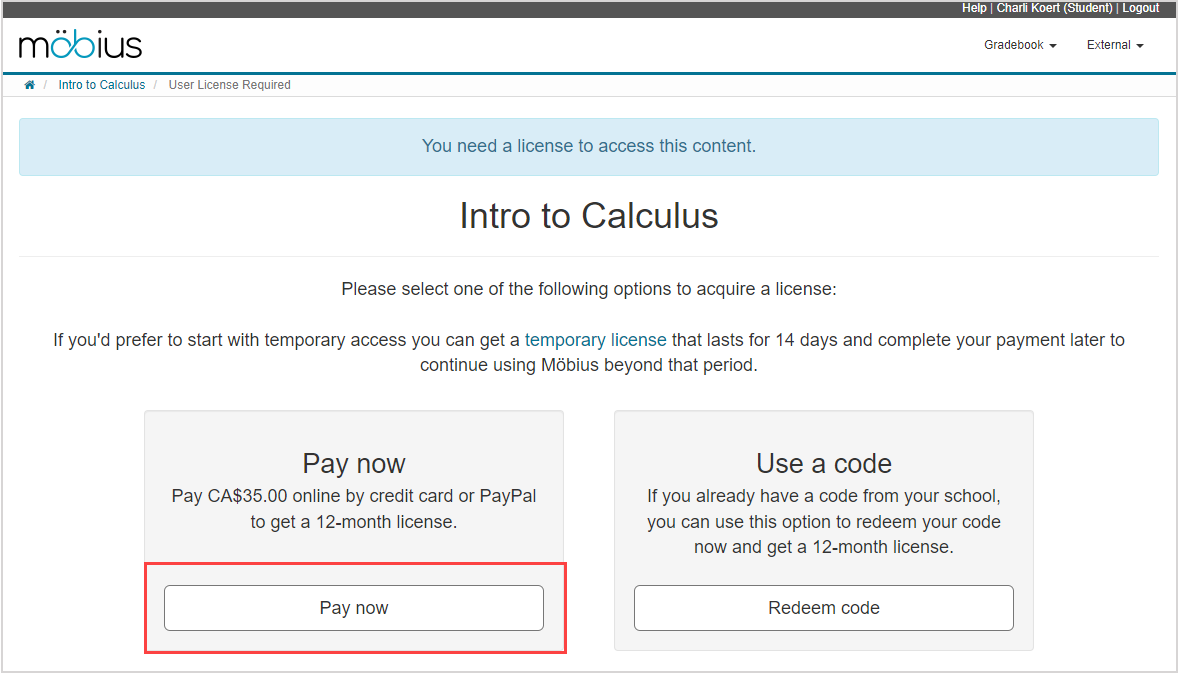
- Click Pay now to use PayPal (with or without a PayPal account) to purchase your full Möbius license now
- Then check out the Pay now for my license section of this help topic
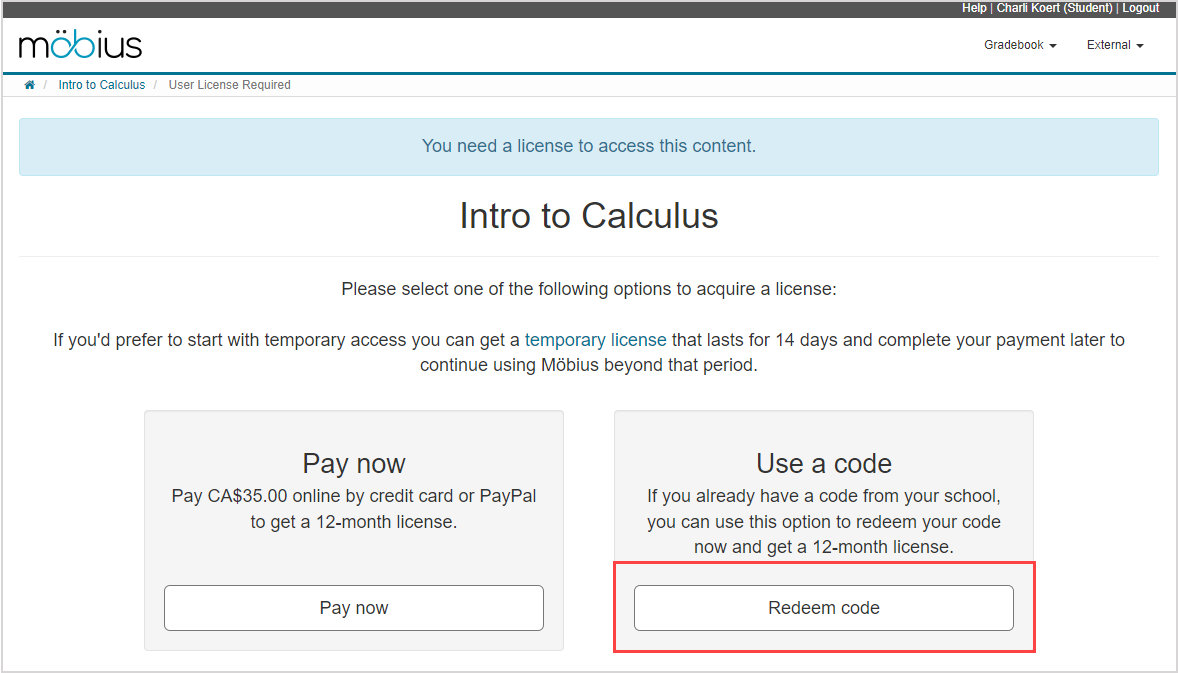
- Click Redeem code to redeem your 16-character alphanumeric code (Example — QZ79-12UF-R38J-W63P) now for your full Möbius license
- Then check out the Use a redemption code to get my license section of this help topic
Get a temporary license
Choosing to use a temporary license reveals the expiry date and payment completion information for the temporary Möbius license that you're about to acquire.
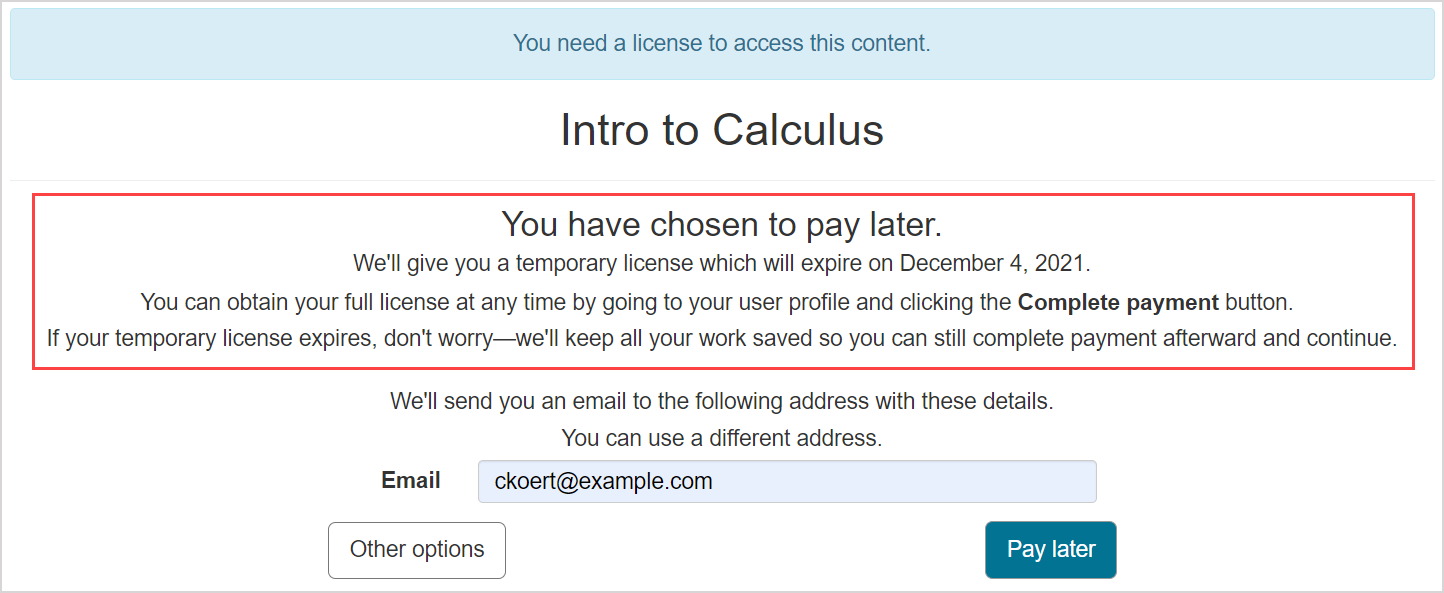
NOTE: Choosing to use a temporary license means that you're choosing to pay at a later time for your full license. The length of time that your temporary license is active for depends on your organization. You can then choose to pay for your full license at anytime during your active temporary license period or after it expires.
IMPORTANT: If your temporary Möbius license expires before you've gotten a chance to complete the payment, don't worry! All of your work that you completed with your temporary license will be saved and you can return to it once you've completed your payment.
To continue with getting a temporary license:
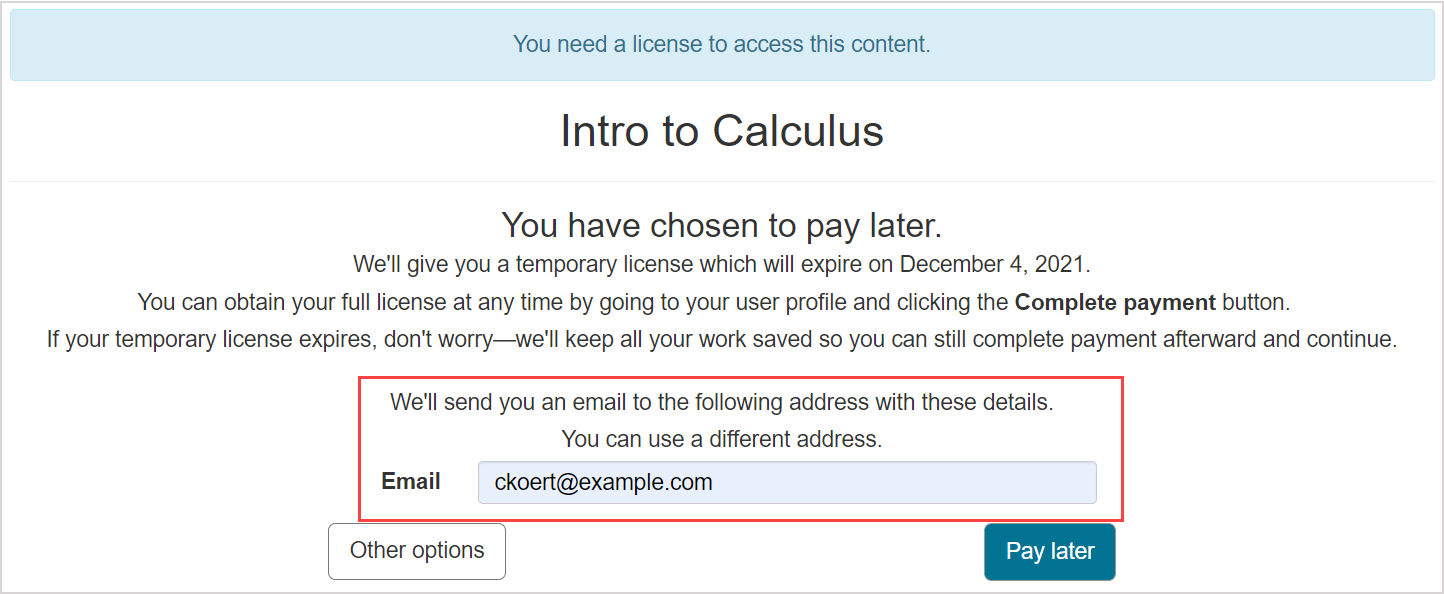
TIP: This Email field isn't required, and is used to send you a receipt for your temporary Möbius license. You can manually edit the email address that's listed here for your licensing communications. Changing the email address listed here doesn't change the email address that's associated with your Möbius account.
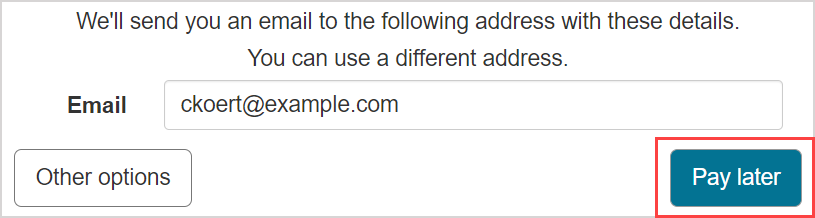
Click Pay later to confirm your temporary license.
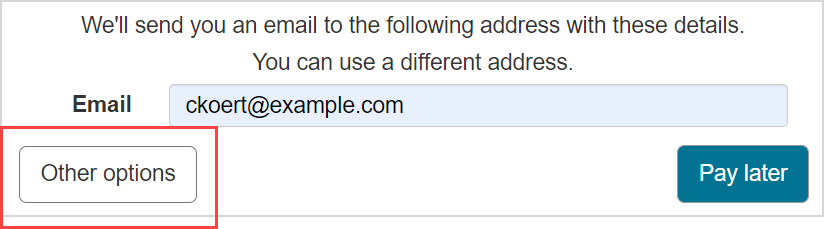
TIP: Click Other options to cancel this selection and return to the main User License Required page to choose another option for obtaining your Möbius license.
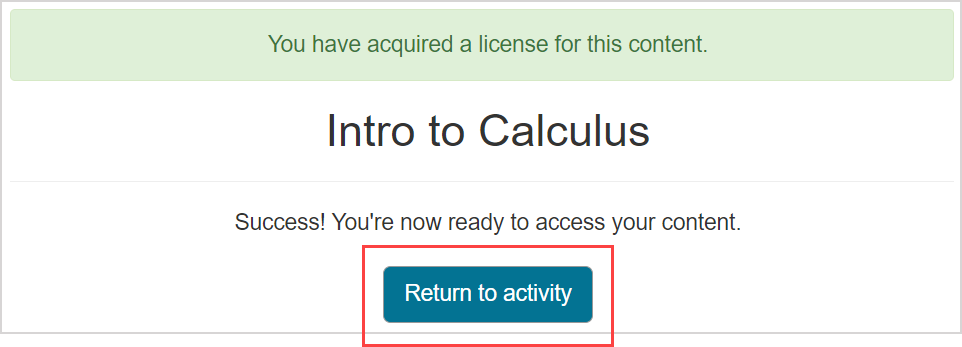
You're then shown a confirmation page stating that you've successfully acquired a license. Click Return to activity to resume accessing Möbius with your new temporary license.
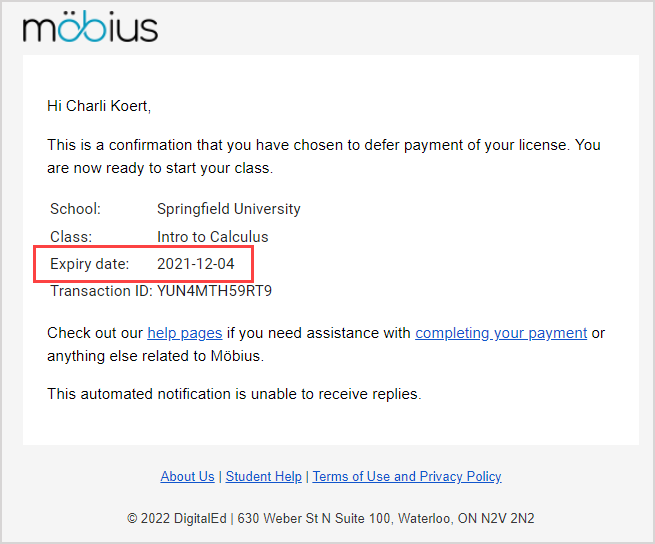
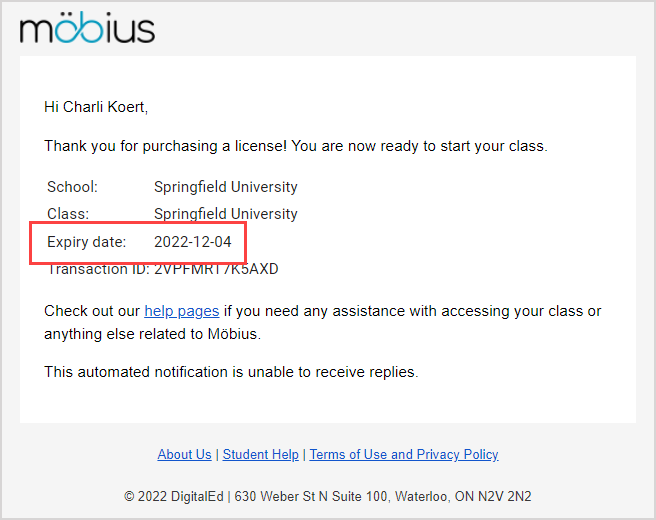
NOTE: If you entered an email address at Step 1, you'll receive an email receipt stating the expiry date of your temporary Möbius license. Remember to check your spam folder if you've entered an email address but haven't received the receipt to your inbox!
Continue working in Möbius until your temporary license expires.
TIP: Check out the Check the expiry of my license section of this help topic to see how to check the status of your temporary Möbius license.
TIP: To complete your payment and transfer your temporary license into a full Möbius license, check out the Complete payment for my temporary license section of this help topic.
Pay now for my license
Choosing to pay now reveals the price and expiry date of the Möbius license that you're about to purchase.
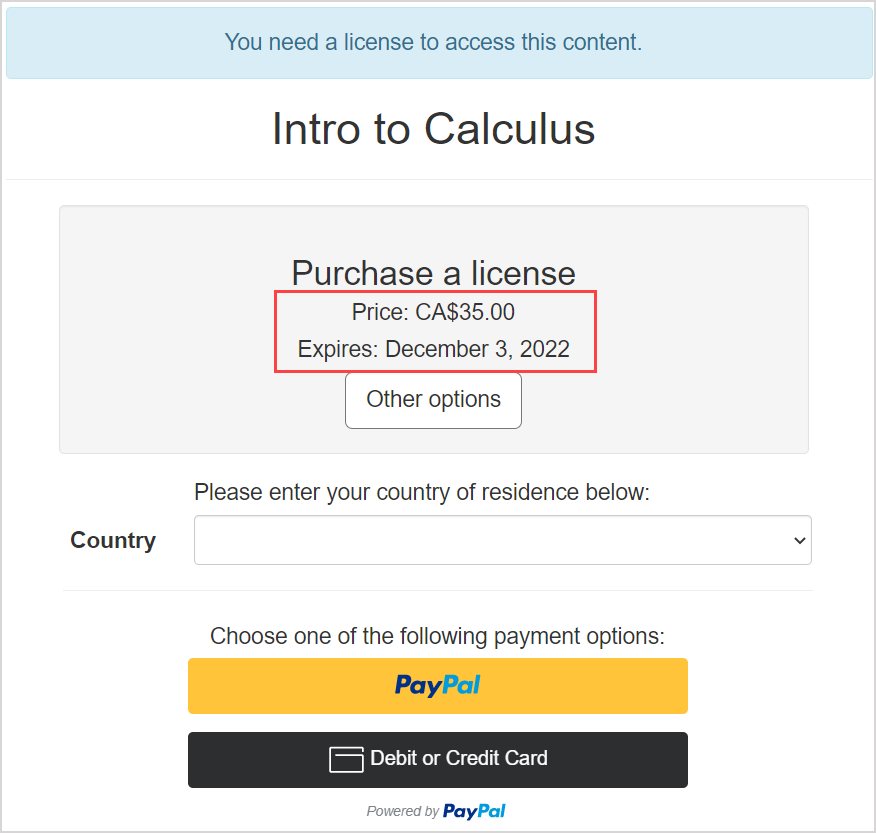
To continue to pay now for your full Möbius license:
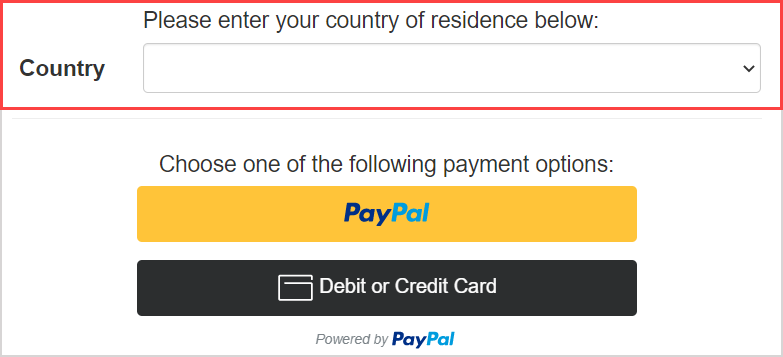
NOTE: Country is a required field. For some countries, you may be required to select a province or state, which are also required fields.
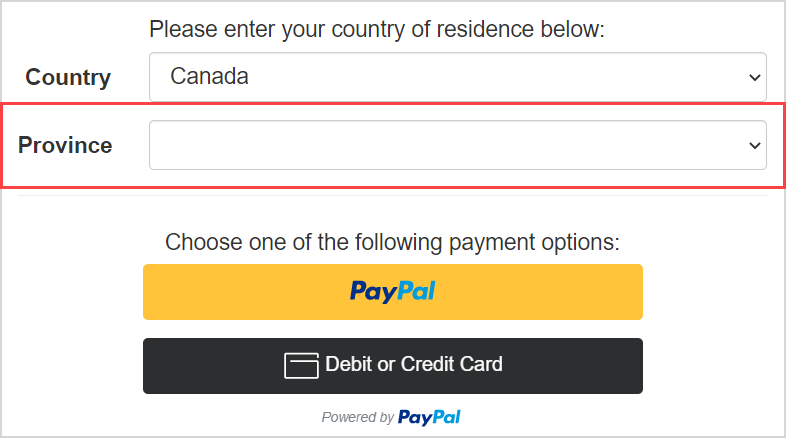
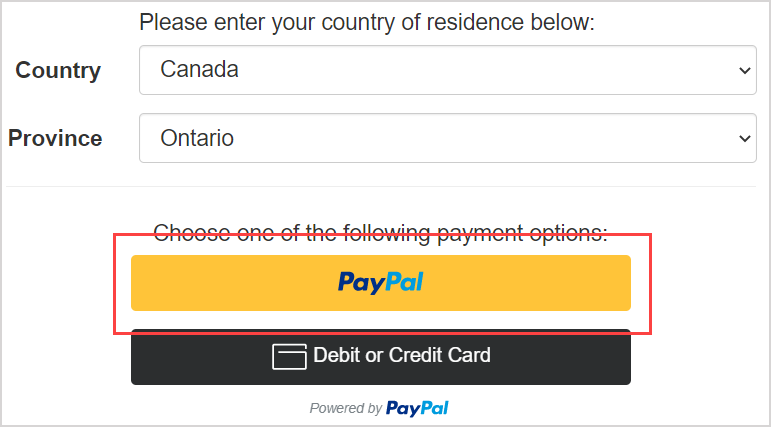
Choose to pay for your license using an existing PayPal account or using debit or credit without an existing PayPal account:
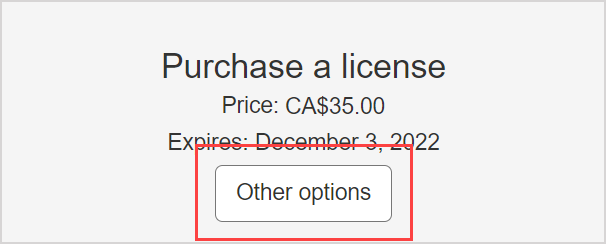
TIP: Click Other options to cancel this selection and return to the main User License Required page to choose another option for obtaining your Möbius license.
NOTE: The email address entered with your payment information is used to send you a receipt for your Möbius license purchase. The email address you use doesn’t need to be the same email address that's associated with your Möbius account.
- Click the PayPal button to complete your secure online purchase using your existing PayPal account
- Submit your payment through PayPal and then go to step 3
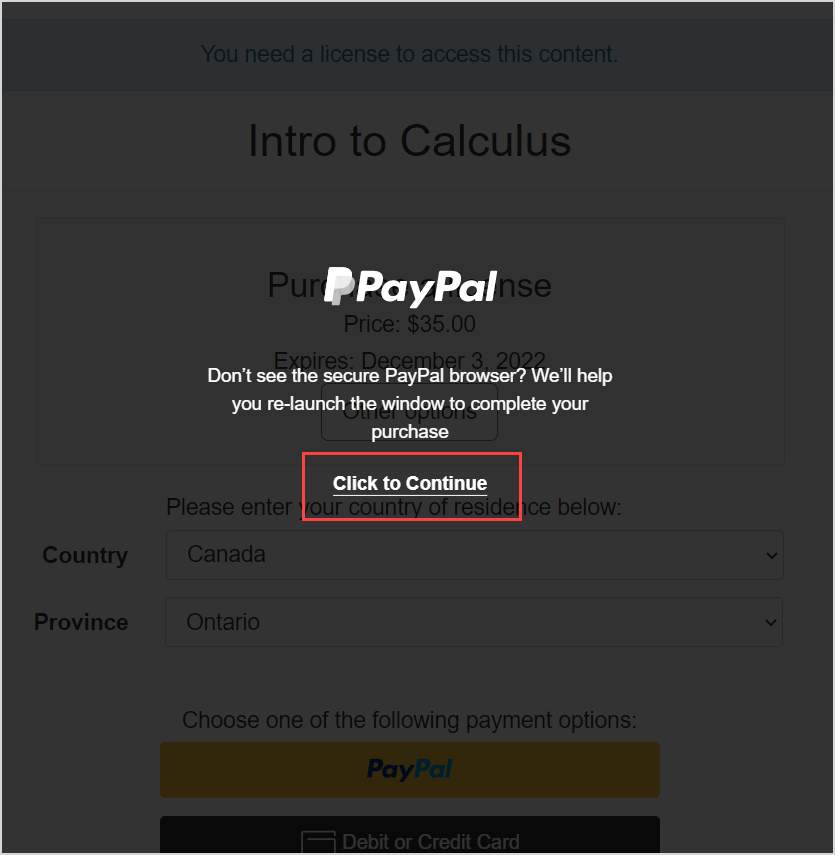
TIP: Your PayPal window might open in a new tab or window. Click the Click to Continue button to bring the PayPal secure payment window into view.
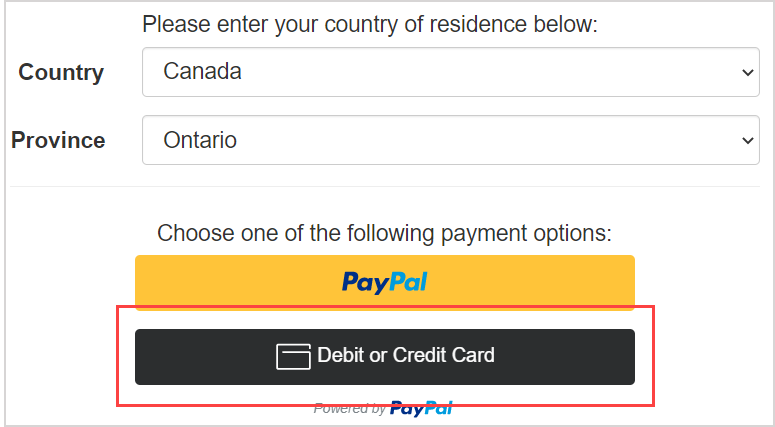
- Or, click the Debit or Credit Card button to complete your secure online purchase using your debit or credit card without a PayPal account
- Complete all of the fields and then click Pay Now below the payment fields and then go to step 3
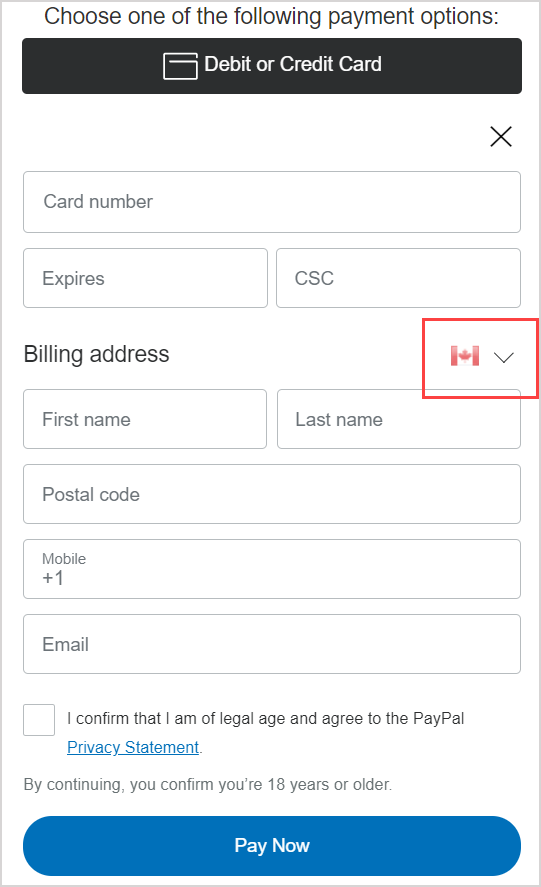
TIP: Ensure that the correct country of residence is selected when filling out the fields for the Debit or Credit Card payment option. If the incorrect country is displayed, use the drop-down menu to select the correct country.
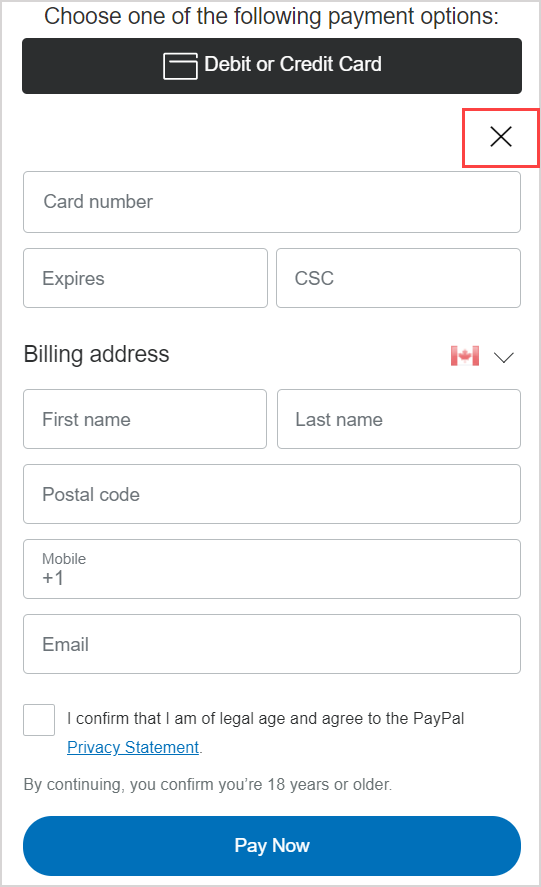
TIP: Click the X to close the Debit or Credit Card option and restore the PayPal payment option.
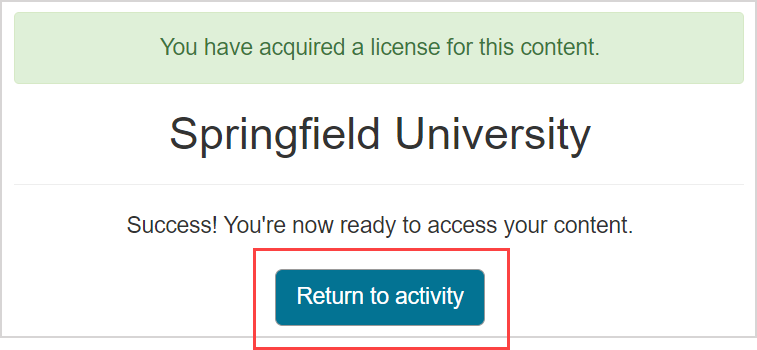
You're then shown a confirmation page stating that you've successfully acquired a license. Click Return to activity to access Möbius with your new license.
NOTE: You'll receive an email receipt to the email address entered at step 2 stating the expiry date of your Möbius license after you complete the transaction. Remember to check your spam folder if you've entered an email address but haven't received the receipt to your inbox!
Use a redemption code to get my license
Choosing to redeem a redemption code reveals the expiry date of the Möbius license that you're about to purchase.
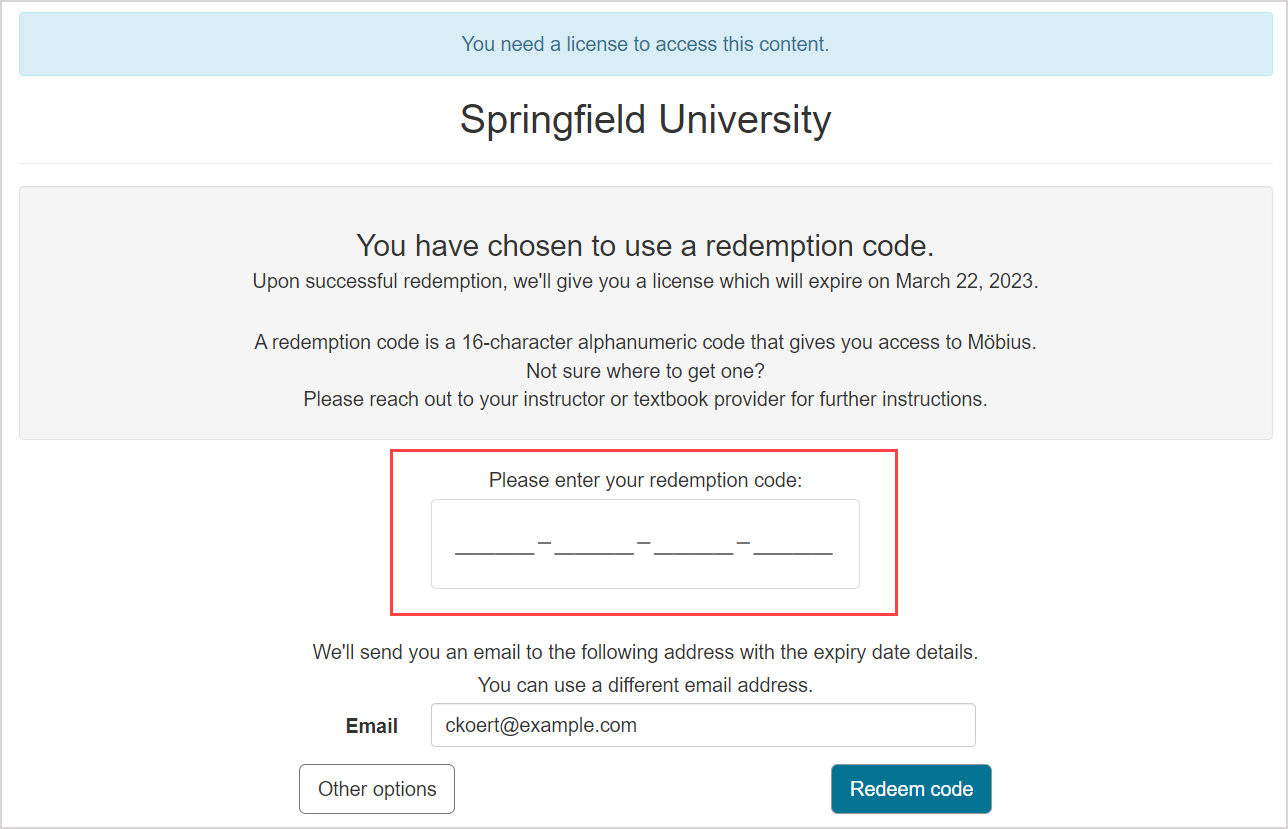
NOTE: Your redemption code is a 16-character alphanumeric code (Example — QZ79-12UF-R38J-W63P).
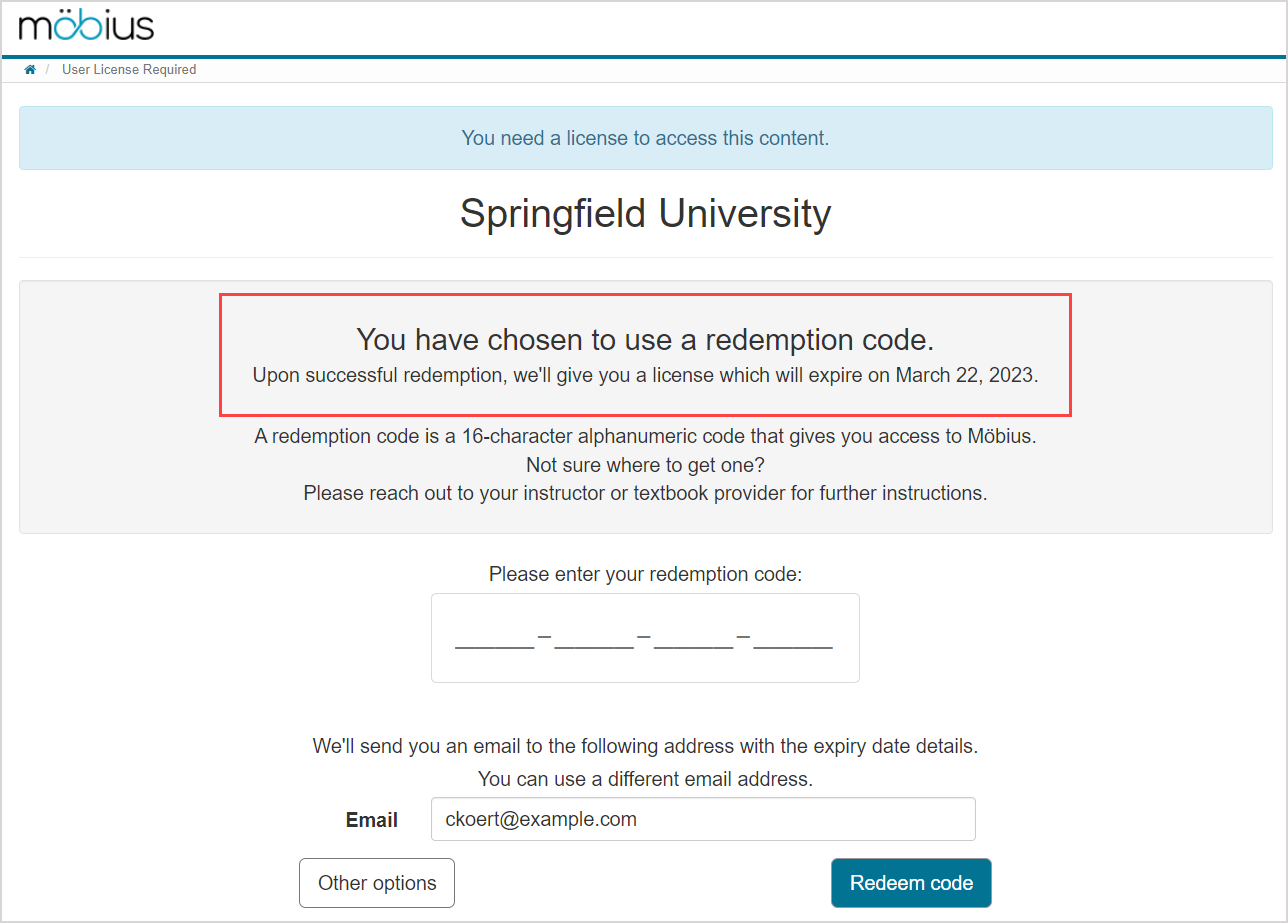
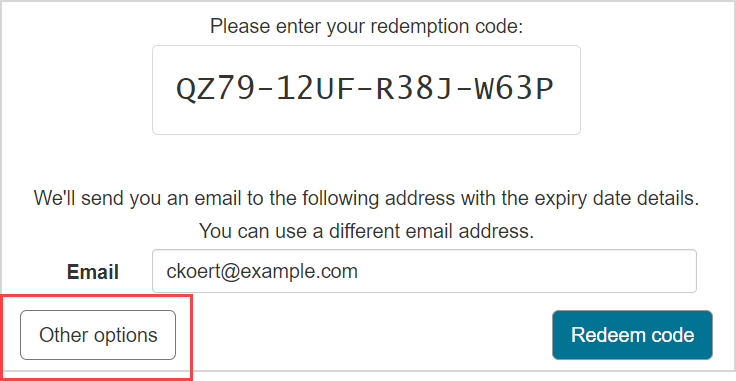
To continue with redeeming your redemption code for your full Möbius license:
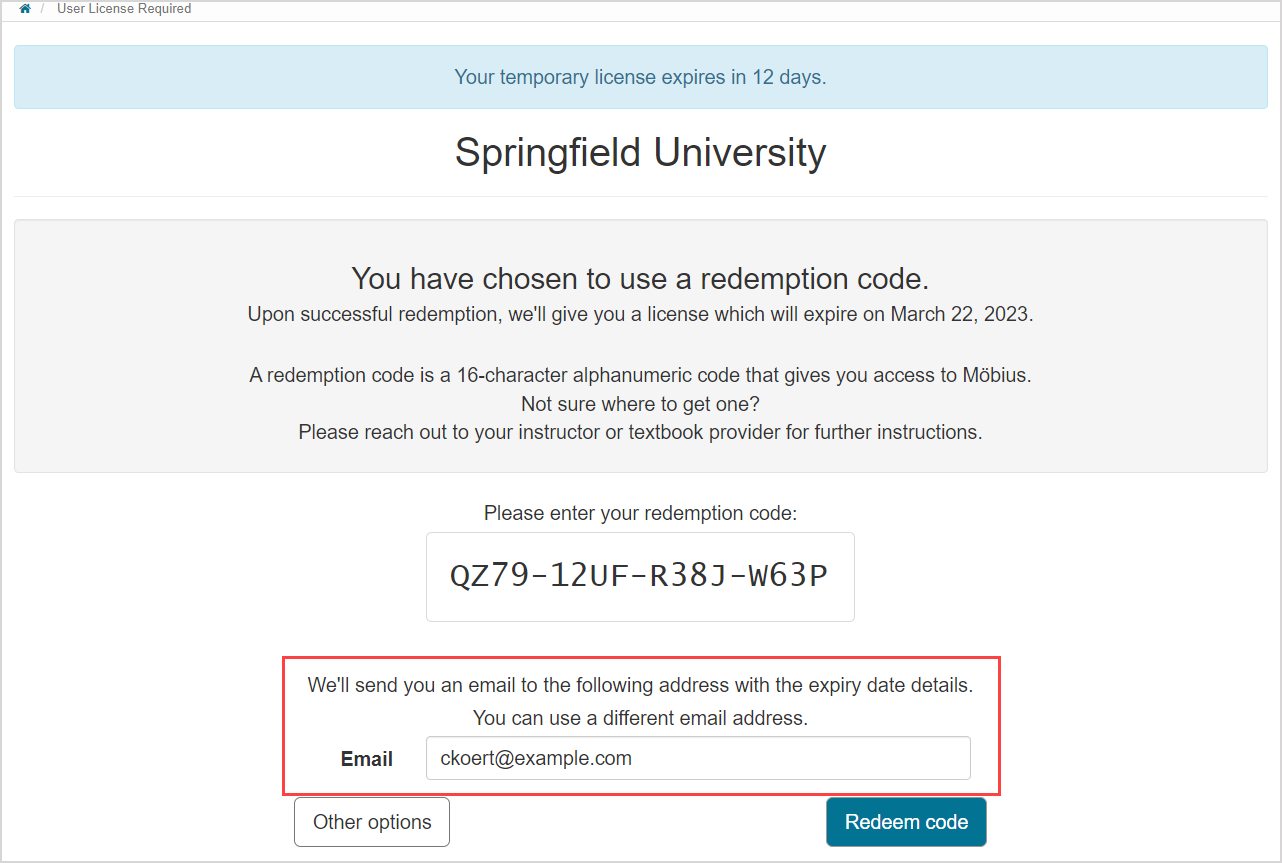
TIP: This Email field isn't required, and is used to send you a receipt for your temporary Möbius license. You can manually edit the email address that's listed here for your licensing communications. Changing the email address listed here doesn't change the email address that's associated with your Möbius account.
TIP: Click Other options to cancel this selection and return to the main User License Required page to choose another option for obtaining your Möbius license.
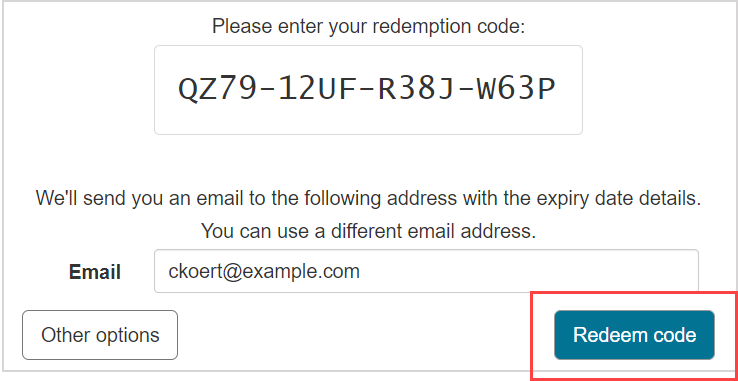
Click Redeem code.
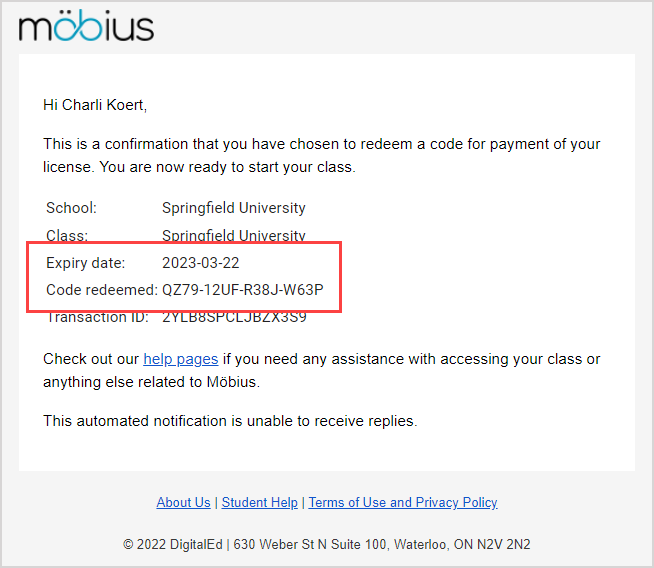
NOTE: If you entered an email address at Step 2, you'll receive an email receipt stating the expiry date of your Möbius license and the redemption code that was used once you complete the transaction. Remember to check your spam folder if you've entered an email address but haven't received the receipt to your inbox!
You're then shown a confirmation page stating that you've successfully acquired a license. Click Return to activity to access Möbius with your new license.
Check the expiry of my license
You can check on the expiry of either your full or temporary Möbius license using three methods:
View your email receipt
- If you opted to receive an email receipt for your full or temporary license purchase, the expiry date of the license is listed in the emailed receipt
TIP: Remember to check your spam folder if you haven't received the email receipt to your inbox!
View your Licenses pane
- Access your Möbius user profile and note the date listed in the Expiry column of the Licenses pane
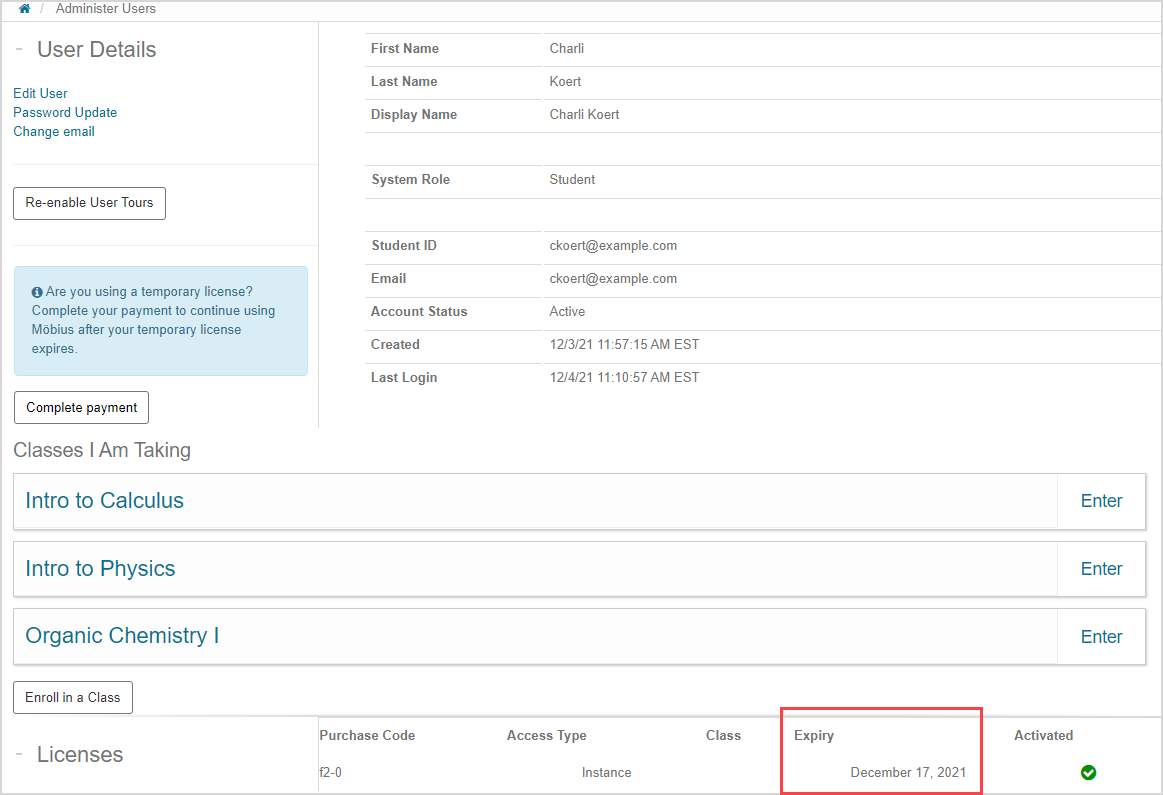
TIP: Check out Access and edit my user profile to see how to view your user profile.
Complete payment button
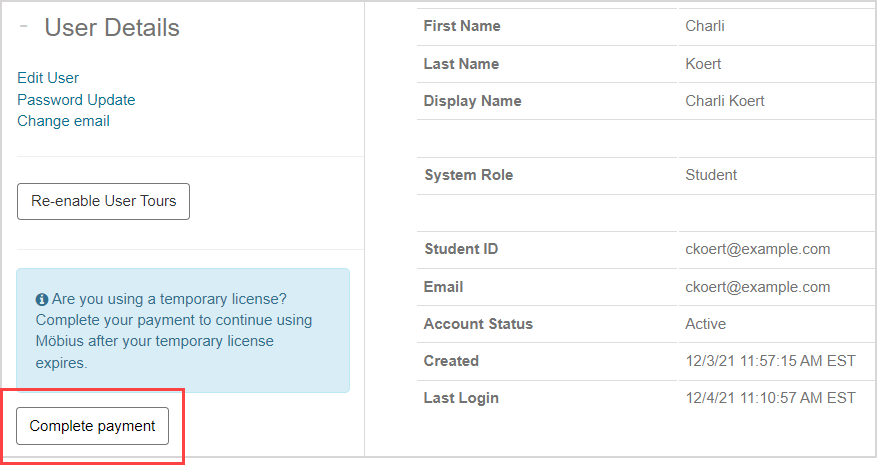
- Access your Möbius user profile and click the Complete payment button in the User Details pane
TIP: Check out Access and edit my user profile to see how to view your user profile.
Complete payment for my temporary license
To complete your payment and transform your temporary license into a full Möbius license:
Access your Möbius user profile and click Complete payment in the User Details pane.
TIP: Check out Access and edit my user profile to see how to view your user profile.
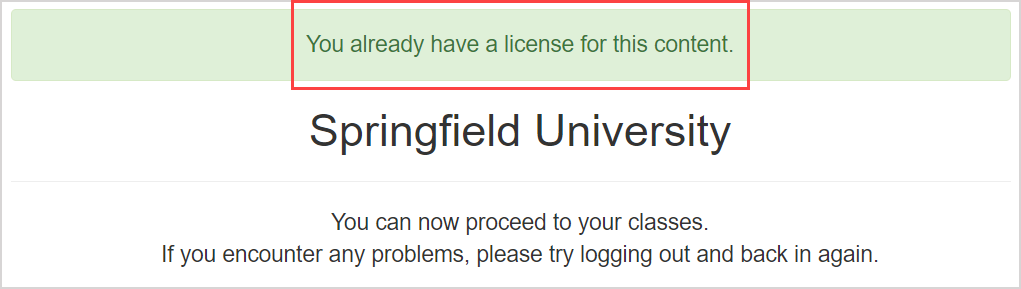
NOTE: Clicking Complete payment after you've already purchased your license will show that you've already paid for your license.
Click (A) Pay now to complete your secure online payment through PayPal or (B) Redeem code to redeem your 16-character alphanumeric redemption code to receive your full Möbius license.
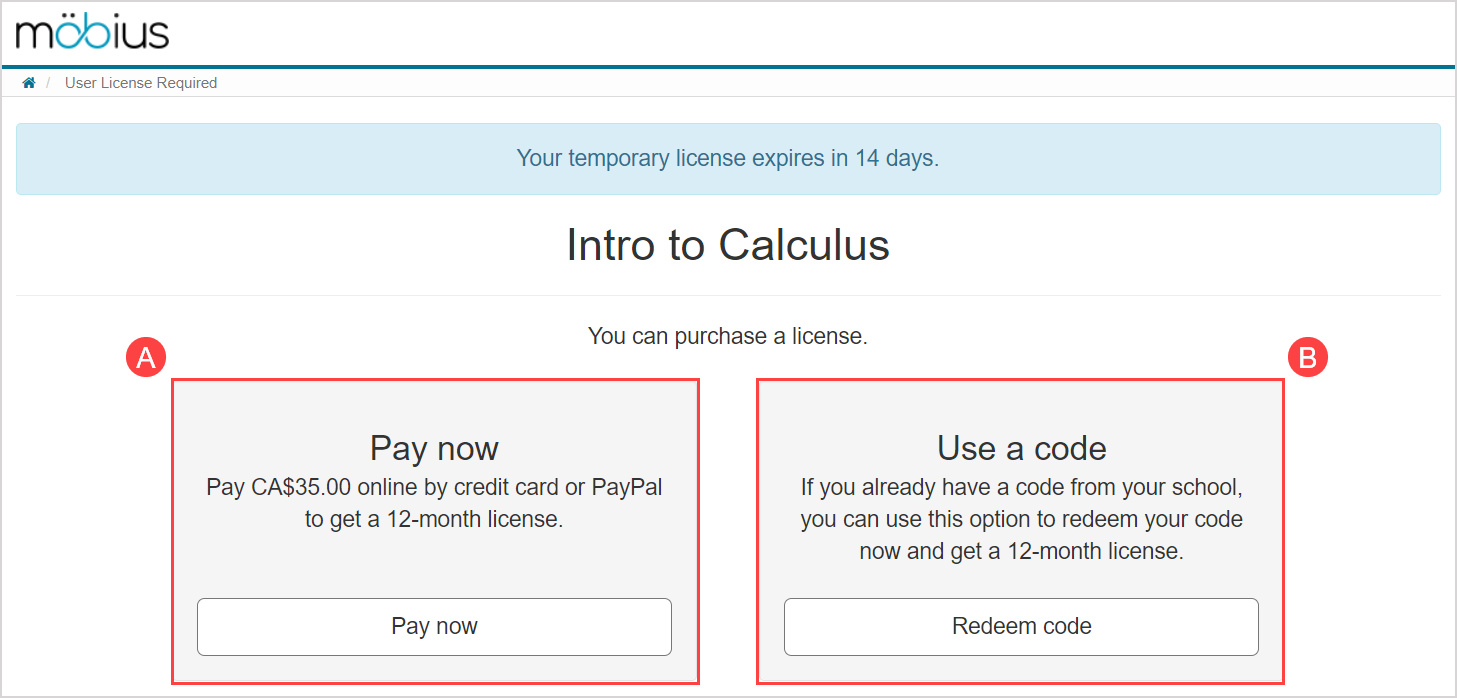
NOTE: Depending on your organization, you might not have both license purchasing options available (Example — you might only see the Pay now option).
Follow the steps in the correct help topic section based on your selection at step 2:
- To pay now for your license using PayPal with or without an existing PayPal account, see Step 1 of the Pay now for my license section of this help topic
- To redeem your 16-character alphanumeric redemption code, see Step 1 of the Use a redemption code to get my license section of this help topic
Troubleshoot getting my license
IMPORTANT: In general, if you come across an issue while trying to get or update your Möbius license, first try logging out of Möbius and then log back in again.
The following sections contain some common issues that you might come across while getting your license, and the troubleshooting steps required.
Accessing the licensing system
- If Möbius is unable to load the licensing app on your device, or you see the 'An unknown error occured' message instead of Paypal app, check your cookies settings or try a different device or network that isn't blocking the digitaled.tools domain (check out Troubleshoot my browser issues).

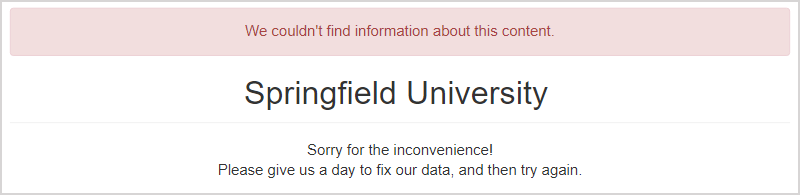
- If you access your content before purchasing is open, please wait and try again on the date stated on the page.
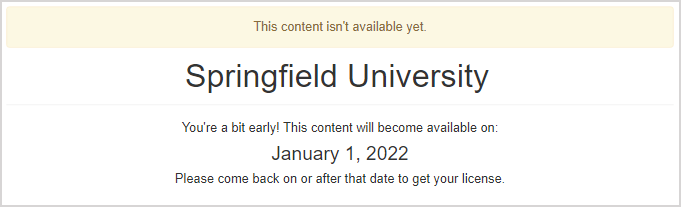
- If you access content for which purchasing hasn't yet been set up, please try again later or contact DigitalEd Support.
Entering your redemption code
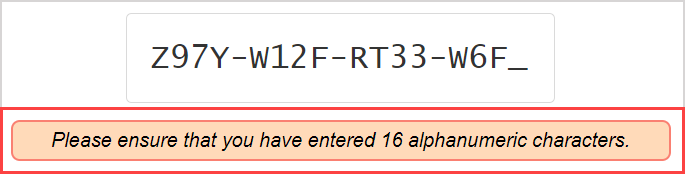
- If you enter a redemption code that's less than 16 characters, please check the code and retype it, or contact the seller of the code if you didn't get the full code.
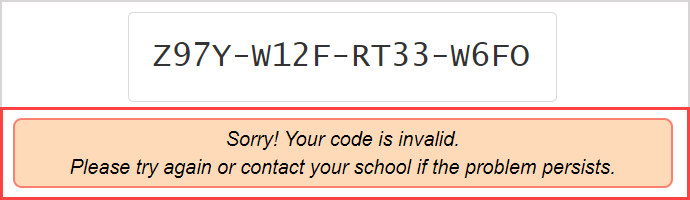
- If you incorrectly enter a code, or enter a code on the wrong Möbius site, please check the code details again or contact the seller of the code.
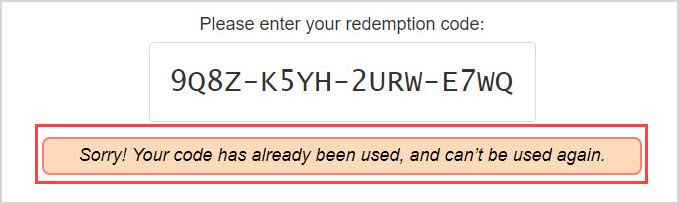
- If you attempt to re-submit a redemption code that's already been used, they will only work one time. Contact the seller of the code if you believe this is in error and you haven't used the code before.
Paying for your license
- If you see the error Address line 1 value is invalid, please try with just your street address (country, province and postal code should already be listed in other fields) and confirm it matches the information your bank would have for your card.
- If Paypal asks for your address line 1 or you see an invalid address error, try clicking the flag and re-selecting your country.
- If your card is declined or Paypal wasn't able to add your card, please check the card and billing address details, and make sure your card has enough available funds. You may need to contact Paypal Support or your bank if your card or address details are rejected, as this information isn't processed by DigitalEd.